
Creating a new database login account
If desired, you can create a login account for the new database and link it to the database you just created.
📘 Instructions
To create a new database owner:
In the SQL Server Management Studio, expand the Security folder, then right-click Logins and select New Login. The Login dialog appears.
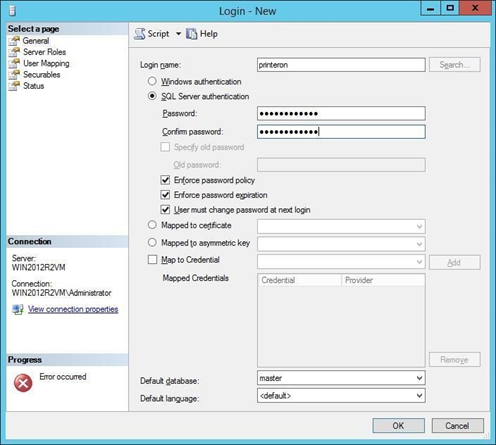
In the Login name field, enter the name used to login to the database.
Choose the authentication method.
If you choose Windows authentication, the user must be logged into Windows with the specified login name to be able to access the database.
If you choose SQL Server authentication, enter and confirm a Password for the account.
Configure the remaining login settings as necessary.
To associate the account with the new PrinterOn or IMCAS database, choose the database from the Default database drop-down.
Click OK to save the login information.