
Registering the EWS mail client
📘 Instructions
To register your EWS service with Azure AD:
Log in to the Azure portal (portal.azure.com) using your Office 365 credentials.
Click Azure Active Directory.
In the left navigation, click App Registrations.
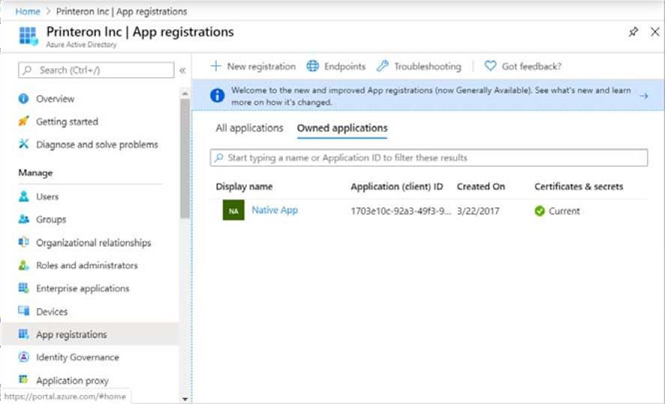
From the top menu, click New Registration. The Register an Application page appears.
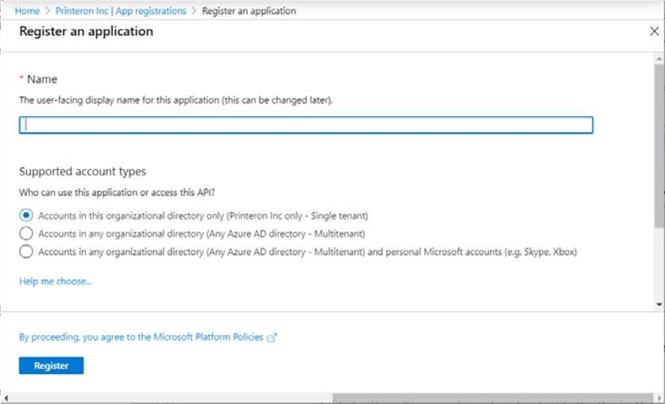
In the Name field, specify a name for your EWS mail client, then complete the remaining Registration settings as necessary.
Click Register. The EWS mail is registered by Azure AD and an overview of the app is displayed.
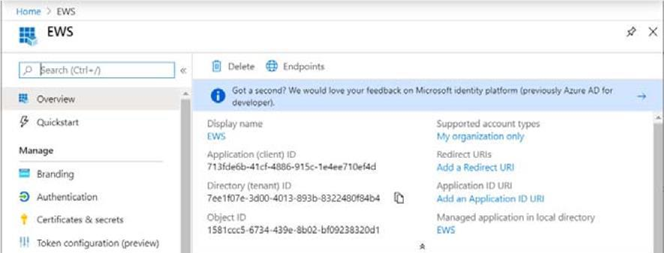
In the overview, locate and copy the Application ID and Directory (tenant) ID values.
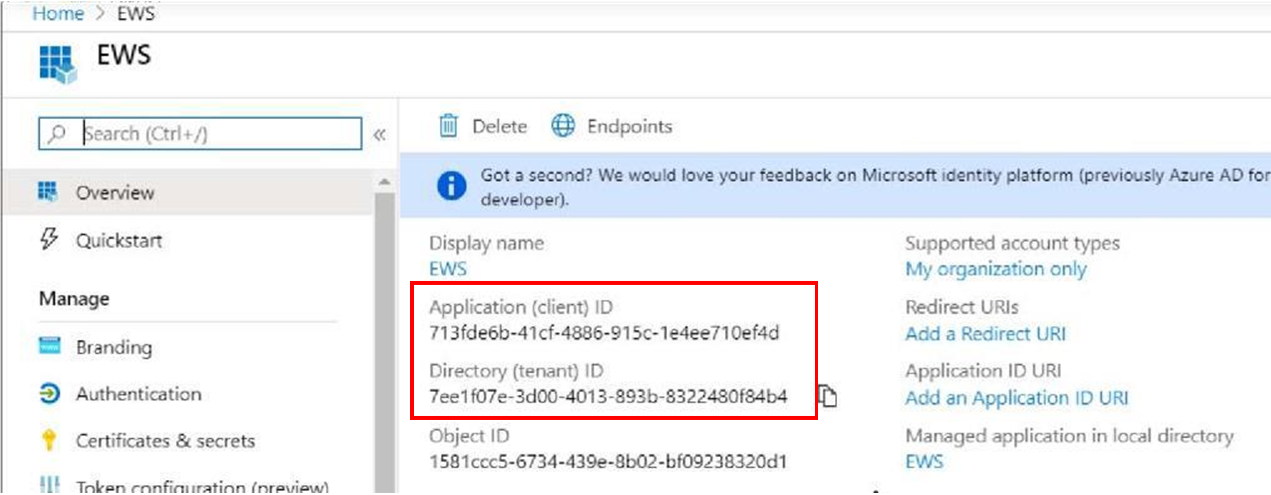
You’ll need to paste this value as the Client ID and Tenant ID value in the OAuth Configuration settings in the Configuration Manager.
Next, you’ll need to configure the Authentication settings for the EWS client.