
Registering the PrinterOn service as a trusted app in Azure AD.
To use Azure AD as an Identity management service, the PrinterOn service must first be registered as a trusted app within Azure AD.
📘 Instructions
To register PrinterOn with Azure AD:
Log in to the Azure portal at portal.azure.com.
Go to the directory where you want to register the app.
Click App Registrations (Legacy). The App Registrations panel appears.
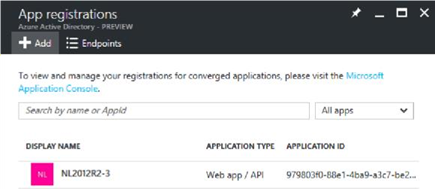
Click New Application Registration. The Create Panel appears.
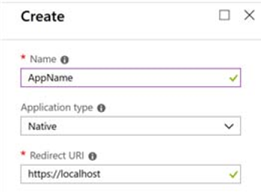
Enter the following information to identify the PrinterOn service:
Setting | Description |
|---|---|
Name | A user-visible name for the application using Azure as it Authentication service. Set this value to Printer On Enterprise. |
Application Type | The type of application, used by Azure AD to determine a specific authentication workflow. Select Web App/API from the drop-down. PrinterOnshould always be defined as WebApp/API(even if users will primarily be using the mobile app). |
Sign-on URL | The Sign-on URL is used by the Web Print Portal. Set this value to
CODE
For example: https://123.45.67.89/cps/servlet/LoginServlet The Sign-on URL must be accessible to external clients and must use SSL. This value will also impact the default Reply-URLs. |
Click Create. PrinterOn Enterprise is registered by Azure AD as a trusted application and added to the App Registration panel.
You can now configure additional redirect URLs used by other PrinterOn client apps, such as PrintWhere or the PrinterOn Mobile Apps.