
Registering the PrinterOn service as a trusted app in Azure AD
To use Azure AD as an Identity management service, the PrinterOn service must first be registered as a trusted app within Azure AD.
📘 Instructions
To register PrinterOn with Azure AD:
Log in to the Azure portal at portal.azure.com.
In the left-hand pane, select Azure Active Directory Service.
Click App Registrations > New registration. The Register an Application panel appears.
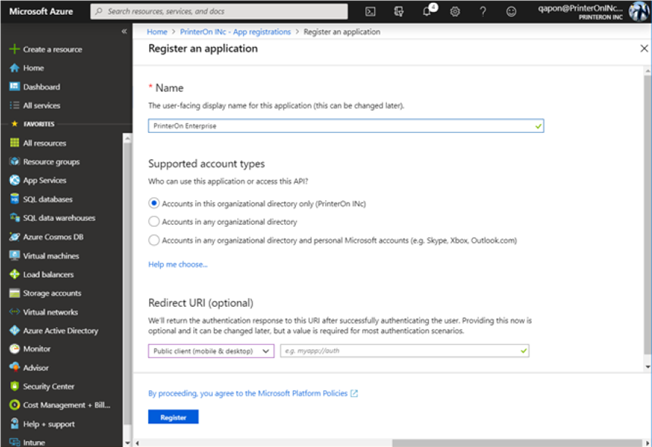
In the Register, an application panel, enter the following information to identify the PrinterOn service:
Name: A user-visible name for the application using Azure as it Authentication service.
Set this value to Printer On Enterprise.
Supported account types: The accounts that you’d like users to authenticate with:
Accounts in this organizational directory only: Specifies that the PrinterOn service is only for use by users in your organization.
Accounts in any organizational directory: Specifies that the PrinterOn service is for use by any business or educational users.
Accounts in any organizational directory and personal Microsoft accounts: Specifies that users can access the PrinterOn service using their business account or a personal Microsoft account.
Redirect URL: The type of app and the URL that Azure redirects the user to after authenticating. For PrinterOn Enterprise, specify the following values:
For the app type, select Public Client (mobile and desktop).
For the Redirect URL, specify the PrinterOn Sign-on URL. Set this value to
CODEhttps://<PrinterOn_Service_URL>/servlet/ LoginServlet.For example https://123.45.67.89/cps/servlet/LoginServlet

Note: The Sign-on URL must be accessible to external clients and must use SSL.
Click Register. PrinterOn Enterprise is registered by Azure AD as a trusted application. Azure displays the Overview panel for the PrinterOn Enterprise App.
You can now configure additional redirect URLs used by other PrinterOn client apps, such as PrintWhere or the PrinterOn Mobile Apps.