
Configuring Print Processing settings
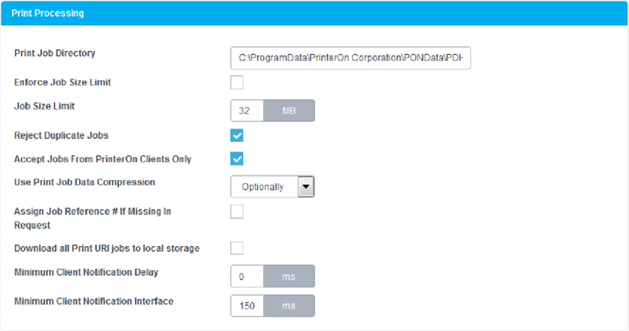
The Print Processing panel controls settings regarding job data storage and rules used to determine whether to access or reject new jobs.
📘 Instructions
Print Processing Settings:
Configuring Print Processing settings | Enforce-Job-Size-Limit
Configuring Print Processing settings | Support-Release-Code-Job-Access
Configuring Print Processing settings | Reject-Duplicate-Jobs
Configuring Print Processing settings | Accept-Jobs-from-PrinterOn-Clients-Only
Configuring Print Processing settings | Use-Print-Job-Data-Compression
Configuring Print Processing settings | Assign-Job-Reference-#-If-Missing-In-Request
Configuring Print Processing settings | Download-all-Print-URI-jobs-to-local-storage
Configuring Print Processing settings | Minimum-Client-Notification-Delay
Configuring Print Processing settings | Minimum-Client-Notification-Interval
Print Job Directory
Where the print job data and metadata files are stored. When implementing a PDH cluster this storage location must be available to all PDH peers. This is typically a network storage location accessible to all nodes in a cluster.
Enforce Job Size Limit
When checked, the Job Size Limit is enforced and applied to new jobs.
Support Release Code Job Access
When checked, users can use release codes to access and release the print jobs.
If you have set one or both of the JWT-Based User Authorization or Enhanced Request Security settings to Required, you must disable this setting.
Job Size Limit
When Enforce Job Size Limit is enabled, PDH rejects incoming print jobs whose size exceeds the specified limit.
Reject Duplicate Jobs
When checked, duplicate print jobs are immediately rejected by the system. Print jobs are identified by the Job ID number (as defined by the Internet Printing Protocol (IPP) RFC.) The cause of duplicate print jobs is usually an unreliable network connection that causes the software that transmitted the print job to miss the acknowledgment that the print job had been received properly.
When that happens, the print client software can re-transmit the print job.
Accept Jobs from PrinterOn Clients Only
When checked, incoming print jobs from non-PrinterOn Clients are not accepted. Otherwise, the PDH server will accept IPP-compliant print jobs from any IPP print client.
Use Print Job Data Compression
How to print job data compressions is managed by PDH. There are three options:
Optionally: Indicates that the PDH supports compression and the submitting client can optionally compress new print jobs before submitting to PDH. Release station clients, such as PDS, can choose to download the print data in a compressed or uncompressed state depending on the capabilities of the print device.
Never: PDH reports to the sending client that compression is not supported. Release station software, such as PDS, will receive all jobs in an uncompressed state when downloading jobs.
Always: PDH reports to the sending client that compression is supported. Release station software, such as PDS, will receive all jobs in a compressed state when downloading jobs.
For best compatibility, this setting should be set to Optionally.
Assign Job Reference # If Missing In Request
When checked, the PDH assigns a job reference number if none exists in the request. This scenario is extremely rare. As a result, this setting is used primarily for troubleshooting; you should only change this setting as directed by PrinterOn Support.
Download all Print URI jobs to local storage
This setting is for future support of cloud storage. It is not currently used.
Minimum Client Notification Delay
The length of time, in milliseconds that the PDH waits before notifying the PDS that a job is available. By default, there is no delay.
Increasing the delay can be useful if your system handles a high number of batch jobs or emails with multiple attachments to be printed. In these cases, having a delay allows the PDH to receive all the documents before sending out notifications to the PDS. PDH can send out a single notification for multiple received documents, minimizing the amount of communication between components, and thereby reducing network use.
Minimum Client Notification Interval
The minimum length of time PDH waits after sending PDS a notification before sending another notification.